Demo — Build Your CV
You are installed, logged in, and staring at a terminal. Let's not ease in with theory. Let's build something real right now.
By the end of this chapter you will have your own professionally designed CV sitting on your Desktop — created entirely from a conversation. No formatting, no templates, no design skills needed.
Your first look at Claude Code
Open your terminal and type:
Claude starts and you land at a screen like this:
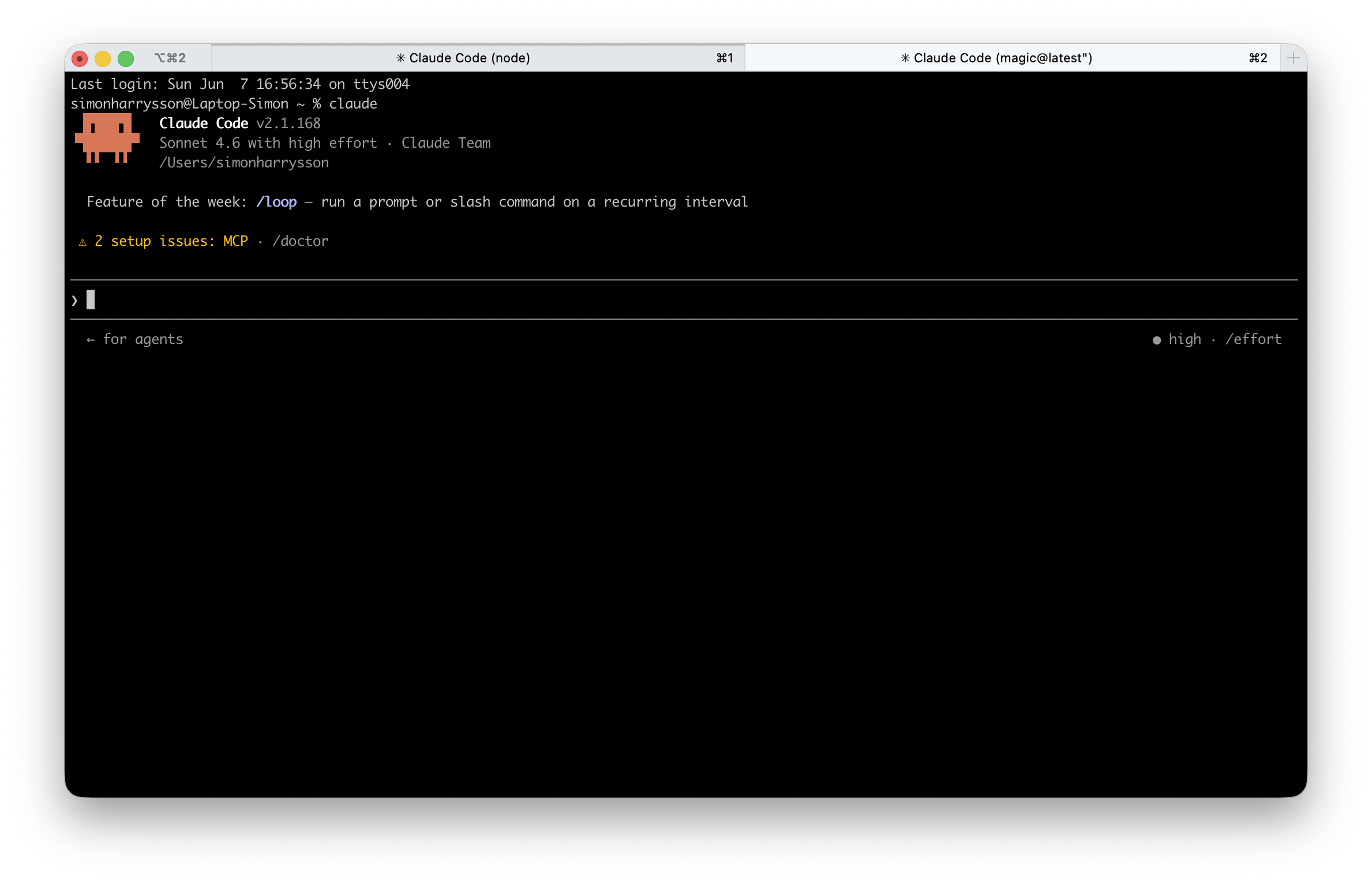
Two things worth knowing before we dive in:
- The
>prompt at the bottom is where you type. Everything you write goes here, then you press Enter. - This is not Google. You are not searching for a page. You are talking to something that will actually do the work. Full sentences work better than keywords. The more naturally you write, the better the results.
Try it. Type this and press Enter:
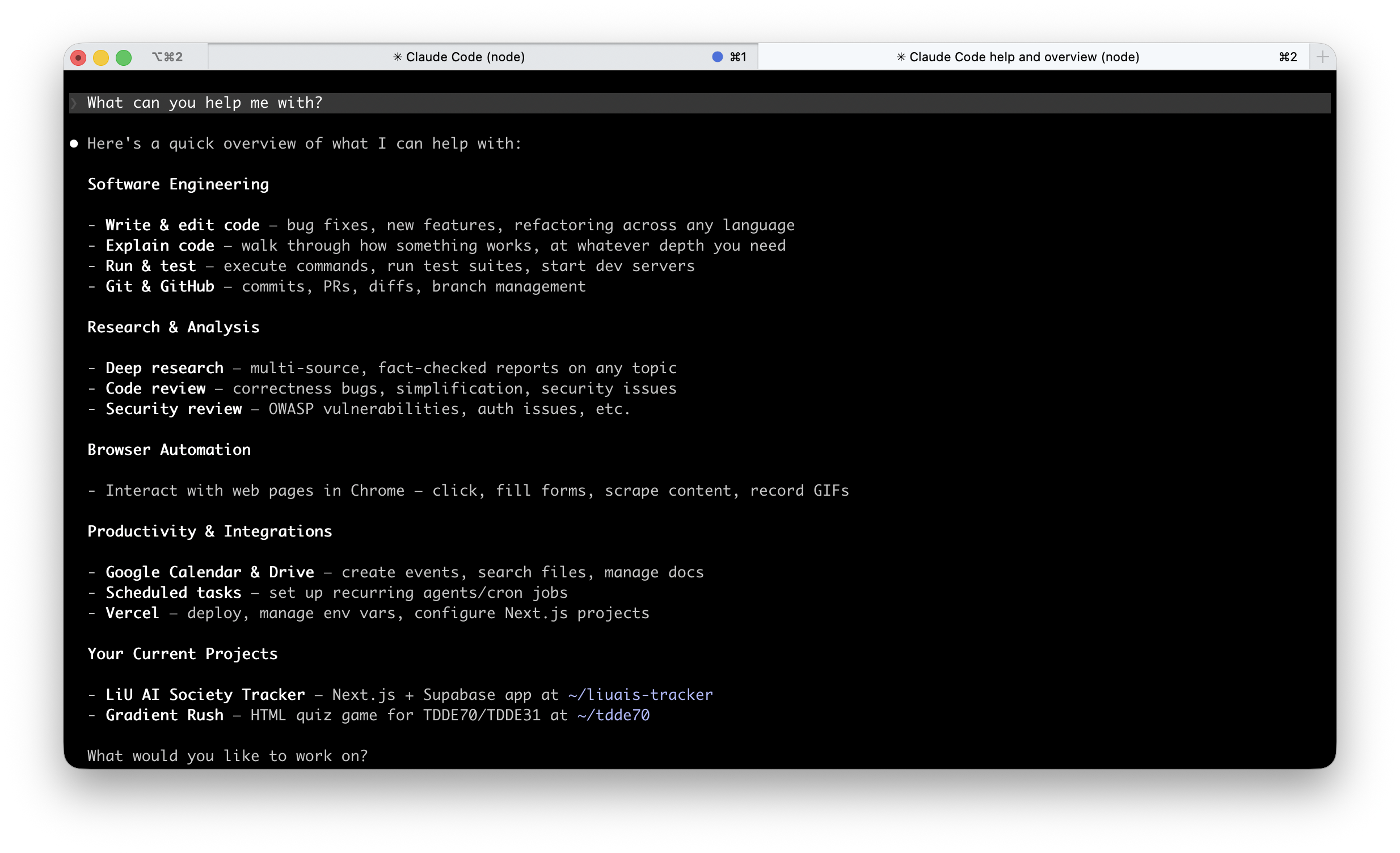
That list is just the beginning. Let's get to work.
Create a folder and launch Claude
Give your CV its own space. In your terminal, run these two lines:
Then launch Claude from inside that folder:
Paste the prompt and answer the questions
At the > prompt, paste this message exactly and press Enter:
I want you to build my CV as a file called cv.html with a beautiful, professional design — clean typography, a subtle color accent, clear sections, and a layout that looks designed, not like a default template.
First: do I already have a CV I can share with you? Ask me to paste it in. If I do, use that as the base. If I say I don't have one, interview me instead — one question at a time, waiting for my answer before moving on. Cover my full name and contact details, education, work experience, projects, and key skills. Keep the questions friendly, and ask follow-ups if my answers are vague.
When the file is ready, open it by running: open cv.html
Claude will ask if you have an existing CV to paste in. If you do, paste it directly into the terminal. If not, just say no and Claude will interview you instead.
Have a LinkedIn profile? You can export your profile as a PDF (LinkedIn → Me → View Profile → More → Save to PDF), then paste the text content into the chat. Claude will use it as the starting point.
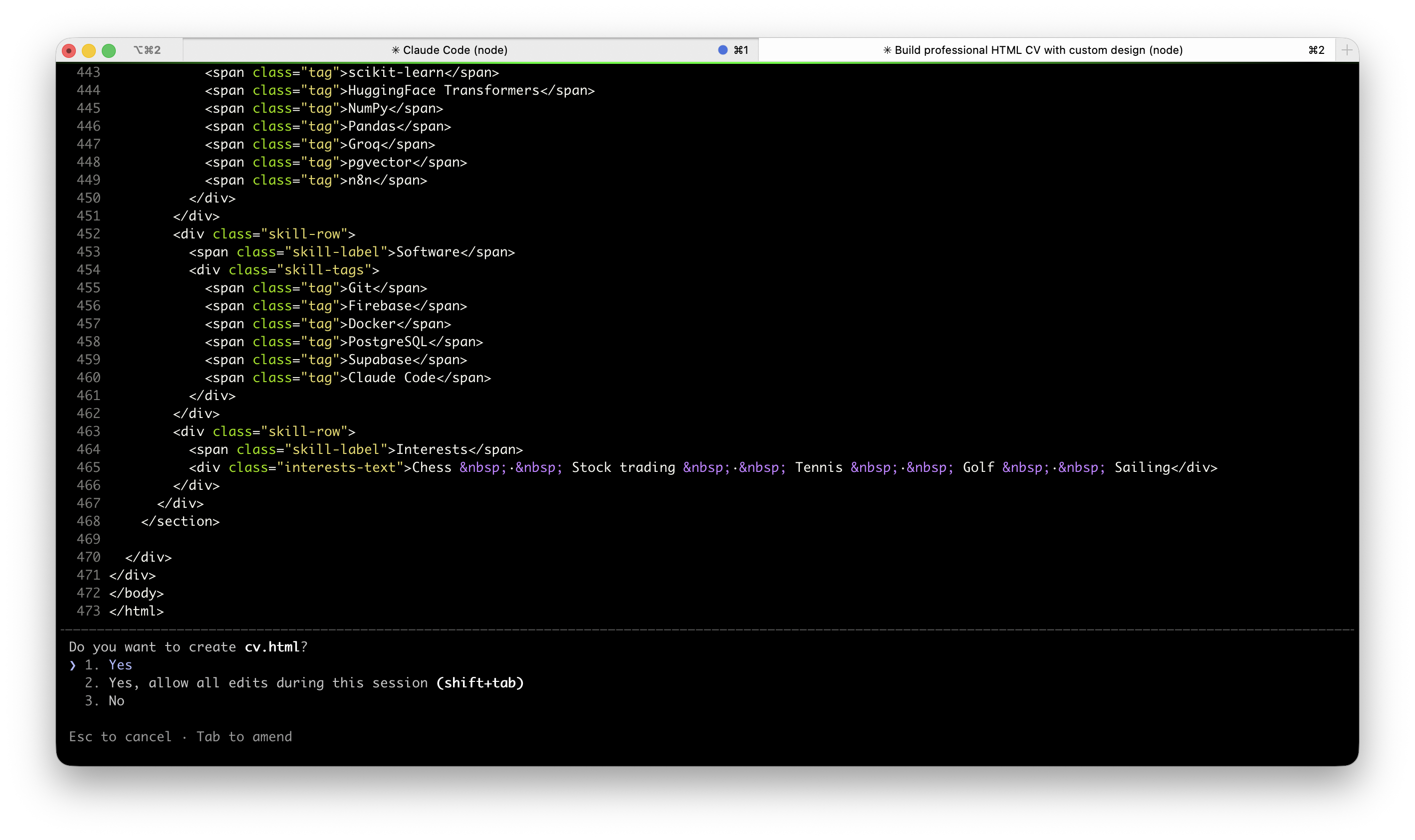
See your finished CV
When Claude has everything it needs, it will create the file and open it automatically. Your browser launches and your CV appears — designed, formatted, and filled with your real information.
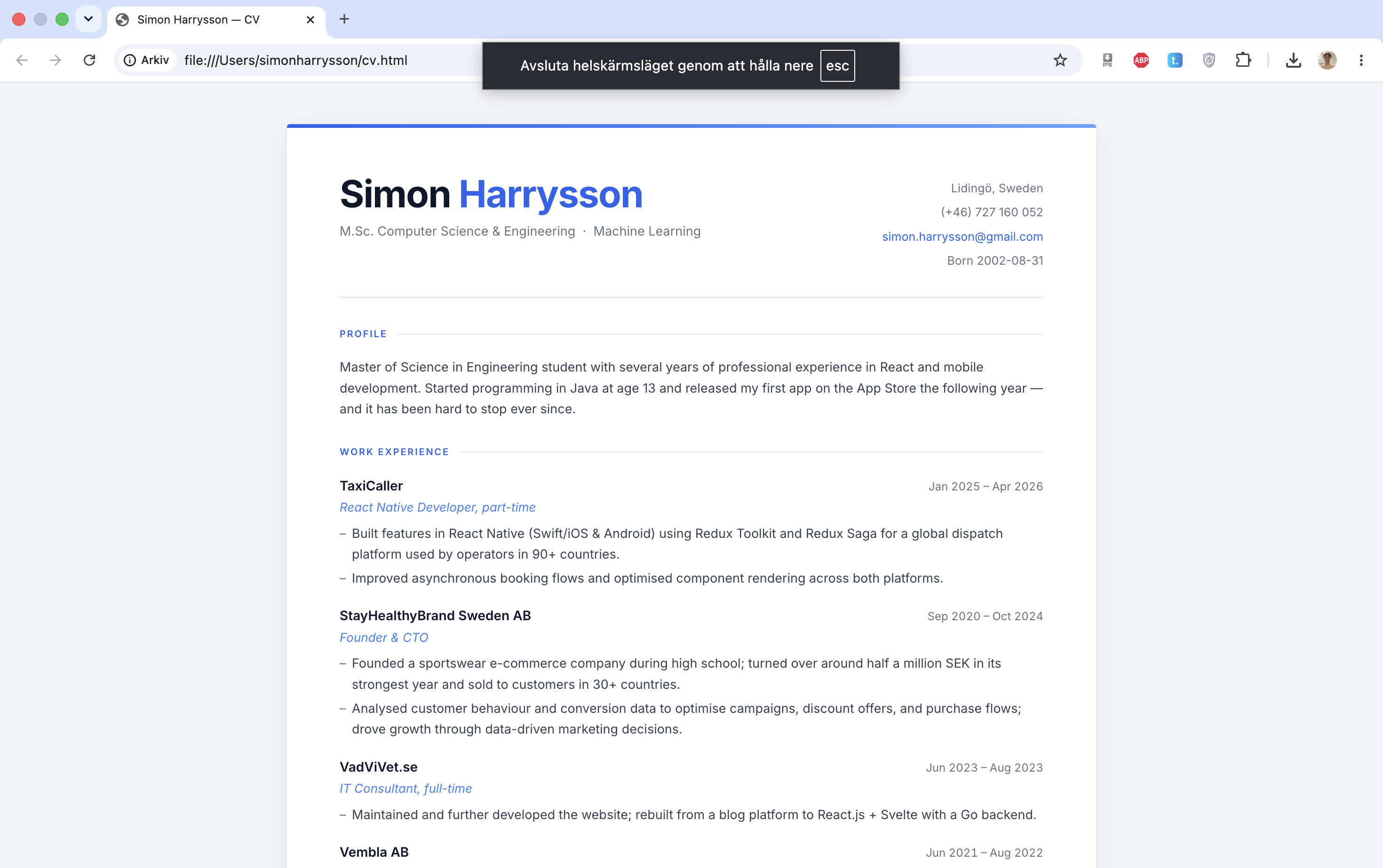
Want to change something? Just tell Claude. "Make the header navy blue." "Add a summary section at the top." "The dates on my first job are wrong, it should be 2022 to 2024." Every change is one sentence.
Now make it actually impressive
The first version Claude produces is clean and functional. But Claude can do a lot better than that — and this is where things get fun.
Go back to the terminal and paste this:
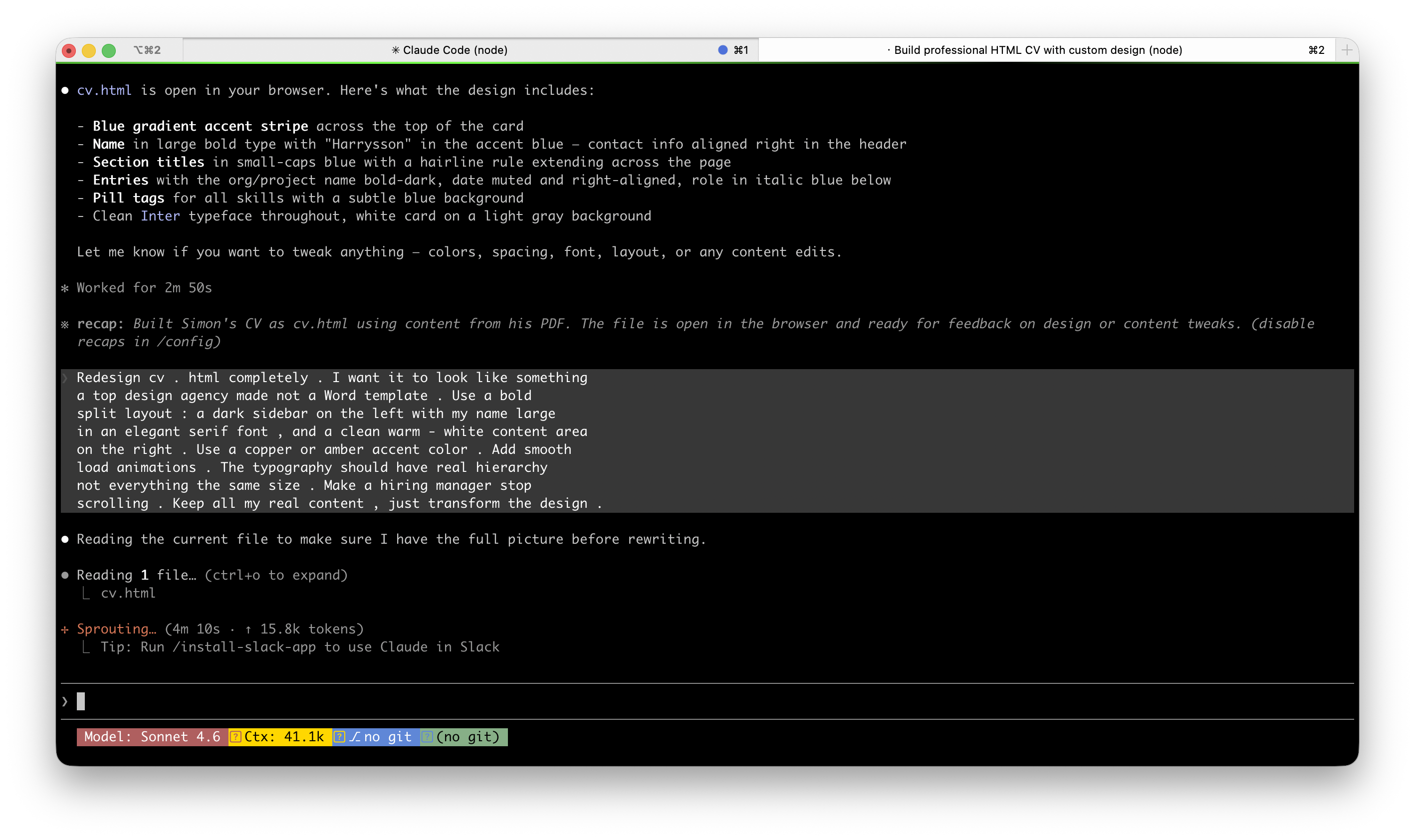
Redesign cv.html completely. I want it to look like something a top design agency made — not a Word template. Use a bold split layout: a dark sidebar on the left with my name large in an elegant serif font, and a clean warm-white content area on the right. Use a copper or amber accent color. Add smooth load animations. The typography should have real hierarchy — not everything the same size. Make a hiring manager stop scrolling. Keep all my real content, just transform the design.
When done, open it again with: open cv.html
Claude will rewrite the entire file. When the browser refreshes, this is what you get:
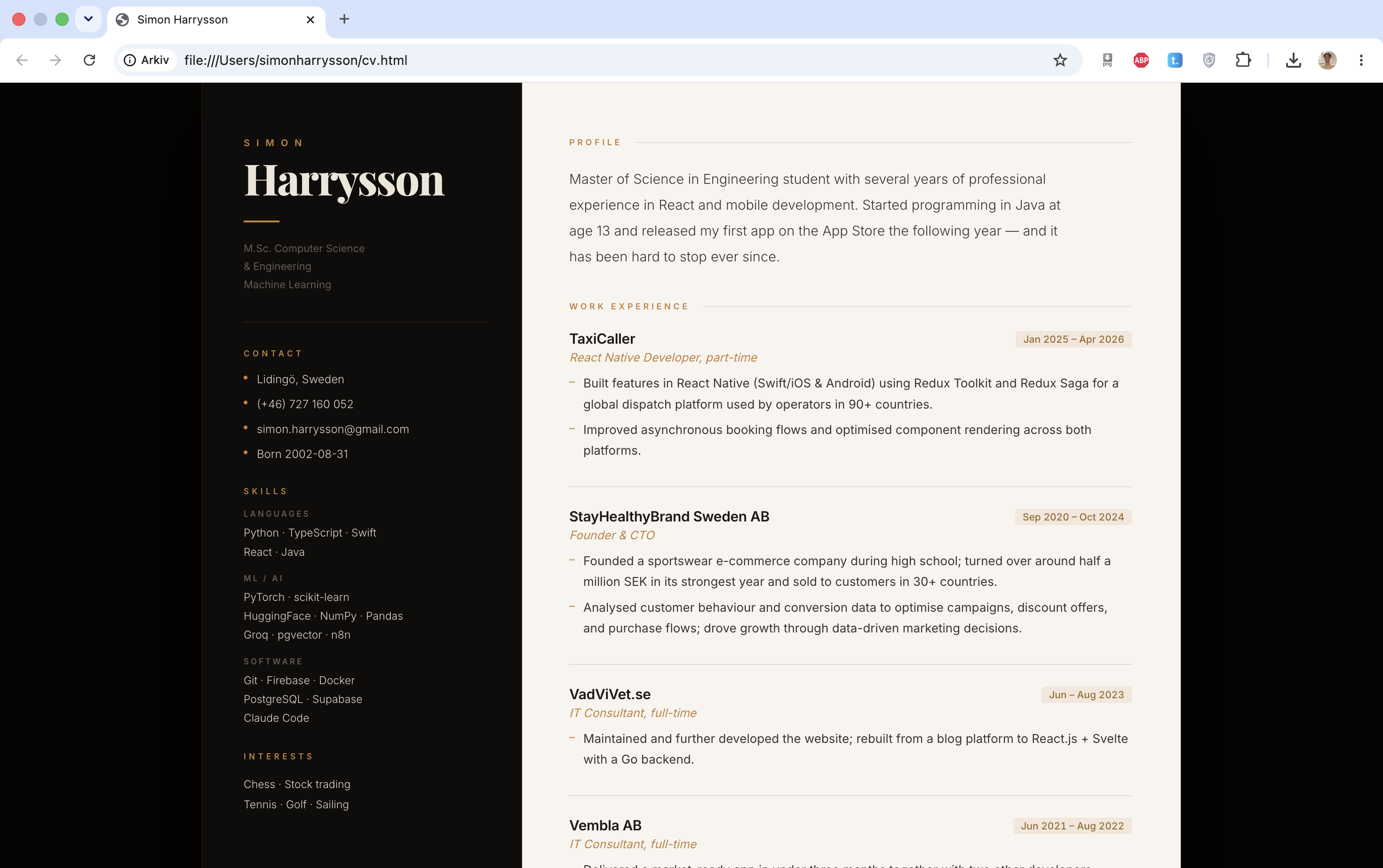
That is the moment. From a plain structured document to something that looks genuinely designed, from a single message. No Figma, no CSS knowledge, no designer.
Everything in this guide works the same way. You describe what you want. Claude builds it. You refine. You keep going until it is exactly right.